How It Works: From Forwarded Call to Consultation
Your receptionist answers forwarded calls as your business, gathers intake details and routes the next step using your instructions. Try the browser demo, then use the onboarding chat to set up your firm's call handling.
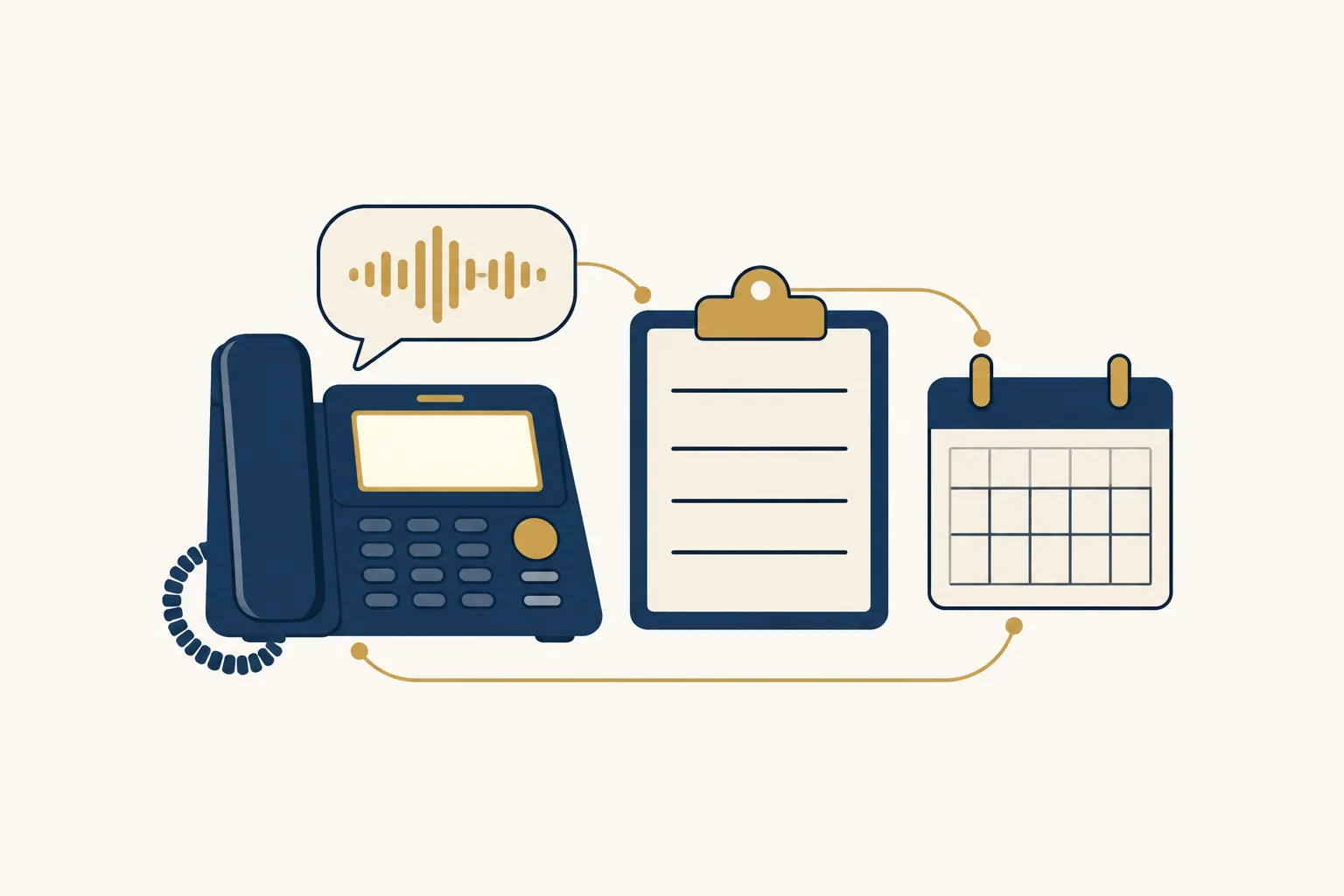
The four steps
- Forward your numberChoose all calls, unanswered calls, busy periods or after-hours coverage using your forwarding guide.
- Answer as your businessYour receptionist identifies itself as a virtual assistant, gives the recording notice and follows your intake instructions.
- Receive alerts and bookingsCheck email and app push notifications, review call details and see consultations booked into Google Calendar.
- Test before going livePlace a test call, review the result and confirm your settings before forwarding callers to your receptionist.
Choose Which Calls Your Number Forwards
You keep your business number and choose when calls forward to your receptionist. Send all calls, or limit coverage to no-answer, busy or after-hours calls.
- Keep your numberClients continue dialing the business number they already use.
- Choose your coverageForward calls during the situations you want the receptionist to handle.
- Follow carrier instructionsUse the forwarding guide supplied for your carrier or phone system.
Read more
Forwarding sends calls from your existing business number to the local number we provide. You select the forwarding arrangement that fits your office: all incoming calls, calls your staff cannot answer, busy calls or calls outside office hours.
For example, your front desk can keep answering during the day while your receptionist covers the evening. Use the carrier or phone-system guide, then test the route before making it live. The receptionist can answer only calls that reach its number. Read the after-hours coverage options if evenings are your starting point.
Hear What Your Receptionist Says and Asks
Your receptionist introduces itself as a virtual assistant, gives the recording notice and explains that the call does not create an attorney-client relationship. Parties' names come before matter details.
- Clear openingThe greeting includes virtual-assistant and recording disclosures that cannot be disabled.
- Names before detailsGather parties' names first so your firm can review potential conflicts.
- Attorney reviewQuestions about case merits go to an attorney, without an AI evaluation.
Read more
The AI follows the intake instructions you supply during onboarding, including practice areas, service area, office hours and urgency rules. After the opening disclosures, it asks for names before gathering the limited information your firm needs.
A caller asking whether they have a case hears that an attorney will review the matter and get back to them. The receptionist does not give legal advice, calculate deadlines or promise outcomes. A family member calling about an arrest can be routed to your on-call attorney under your instructions. You can hear fictional intake scenarios before writing your own call rules.
Receive Call Details, Urgency Tags and Bookings
You receive an email and app push notification for each call, with a summary and urgency tag. Review transcripts in the dashboard and consultations booked into Google Calendar.
- Call alertsEmail and app push notifications bring summaries and urgency tags to you.
- Review detailsOpen transcripts and available recordings in your dashboard, alongside usage and settings.
- Consultation optionsBook into Google Calendar or collect details for your staff to call back.
Read more
Your call alert gives you the summary, urgency tag and transcript, plus the recording when recording is enabled. A daily digest email helps you review the day's calls together. The dashboard holds call details, usage and settings for later review.
For urgent matters, your instructions determine whether the receptionist attempts a warm transfer or pages the on-call person. With a warm transfer, that person hears a short summary and presses 1 to accept. Routine callers can receive a consultation booking or leave callback details. Your firm reviews the information and carries out its own follow-up work.
Test Your Call Handling and Update It Later
A test call lets you check your greeting, intake questions and routing before callers reach the receptionist. Later, tell the AI in plain words when your settings need changing.
- Test the greetingListen for your business introduction, required disclosures and the first intake question.
- Check urgent routingUse a test scenario to review who receives the urgent call.
- Update by chatTell the AI when hours, services or on-call instructions need to change.
Read more
Test the call types your office expects before sending live traffic: a prospective client, an existing client and a matter your firm treats as urgent. Review the summary and transcript to check whether the questions gathered useful information. Confirm that consultation bookings and your chosen urgent route work as intended.
Settings remain available in the dashboard, and you can change them by telling the AI what you need in plain words. Review the resulting call handling when office hours or on-call contacts change. Request a free trial for your call workflow; have your firm's services and routing instructions ready for onboarding.
Questions
Can we keep our current law firm phone number?
Yes. You keep the number clients already know and forward selected calls to the local number we provide. Your forwarding guide covers your carrier or phone system. Choose full coverage, no-answer, busy or after-hours forwarding, then place a test call to check the route.
Will callers know they are speaking to an AI receptionist?
The receptionist says it is a virtual assistant at the start of the call and gives a recording notice. Those disclosures cannot be switched off. It answers as your business while making its role clear, and explains that the call does not create an attorney-client relationship.
Does gathering names mean the AI has completed a conflict check?
No. The receptionist gathers parties' names before asking for matter details so your firm can review potential conflicts. It does not clear a conflict or decide whether you can accept a client. Your instructions define the limited intake information it should collect for attorney review.
How does an urgent call reach our on-call attorney?
You tell the AI which situations count as urgent and who should receive them. It can attempt a warm transfer or page the on-call person in your chosen order. For a warm transfer, the recipient hears a brief summary and presses 1 to accept the call.
What happens when the receptionist does not know an answer?
It takes the caller's details for your firm to review instead of supplying a legal answer. You receive the message through email and app push notifications. When the caller asks for advice or a case assessment, an attorney will review the matter and get back to them.
How do we review messages and consultation bookings?
Each call generates an email and app push notification with a summary and urgency tag. Your dashboard contains transcripts and recordings when enabled, alongside usage and settings. Consultations can be booked into Google Calendar, or the receptionist can collect details so your office can arrange a callback.
Try a Call Before Setting Up Your Firm
Open the browser demo without signing up and try a fictional legal intake call. Then request a free trial to configure your firm's instructions.
Hear a sample intake Request a trial
Free trial on request: 14 days, up to 100 minutes